A watch party is not just about the video. It is about reacting to it together. PartyStream gives you four ways to communicate alongside the video: text chat, floating emoji bursts, an emoji picker for reactions on messages, and a GIF search. Plus optional voice chat if you want to talk instead of type. Knowing when to use each makes the experience better.
Text chat
The right sidebar is the chat. Type a message and press Enter to send it. Shift+Enter adds a line break without sending. Messages appear for everyone in real time, with your display name and a color derived from it so people can tell senders apart.
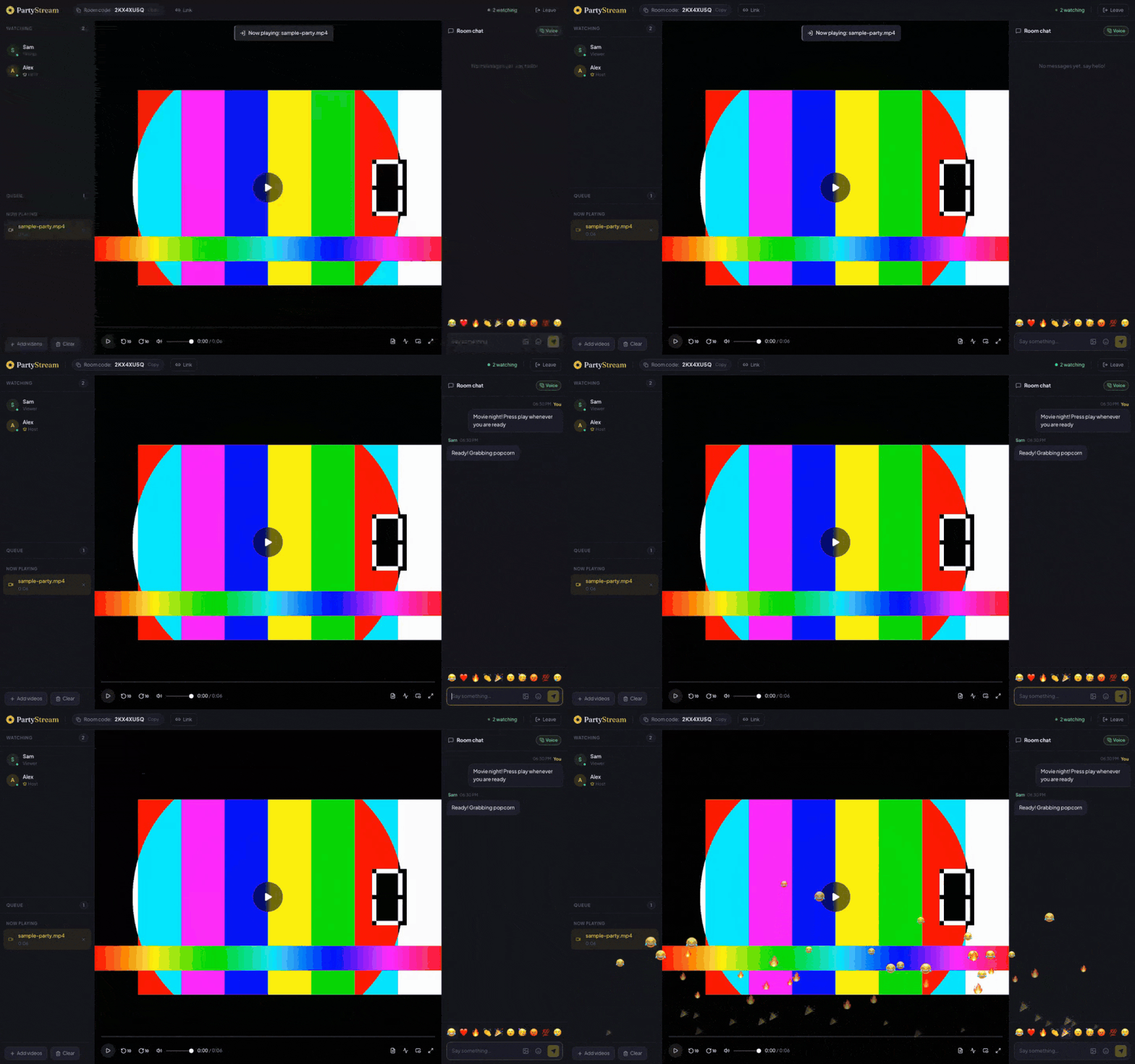
Chat is ephemeral. Messages live in server memory for the session and are gone when the room closes. Late joiners do not see messages sent before they arrived. If you need to keep something, copy it before the room ends.
Emoji bursts
Above the chat text input is a row of 10 reaction emoji. Clicking one sends a burst that floats up across everyone's screen, not just yours. It is a full-screen animation, not a static message in the chat log. Multiple people can burst at the same time and the emoji pile up.
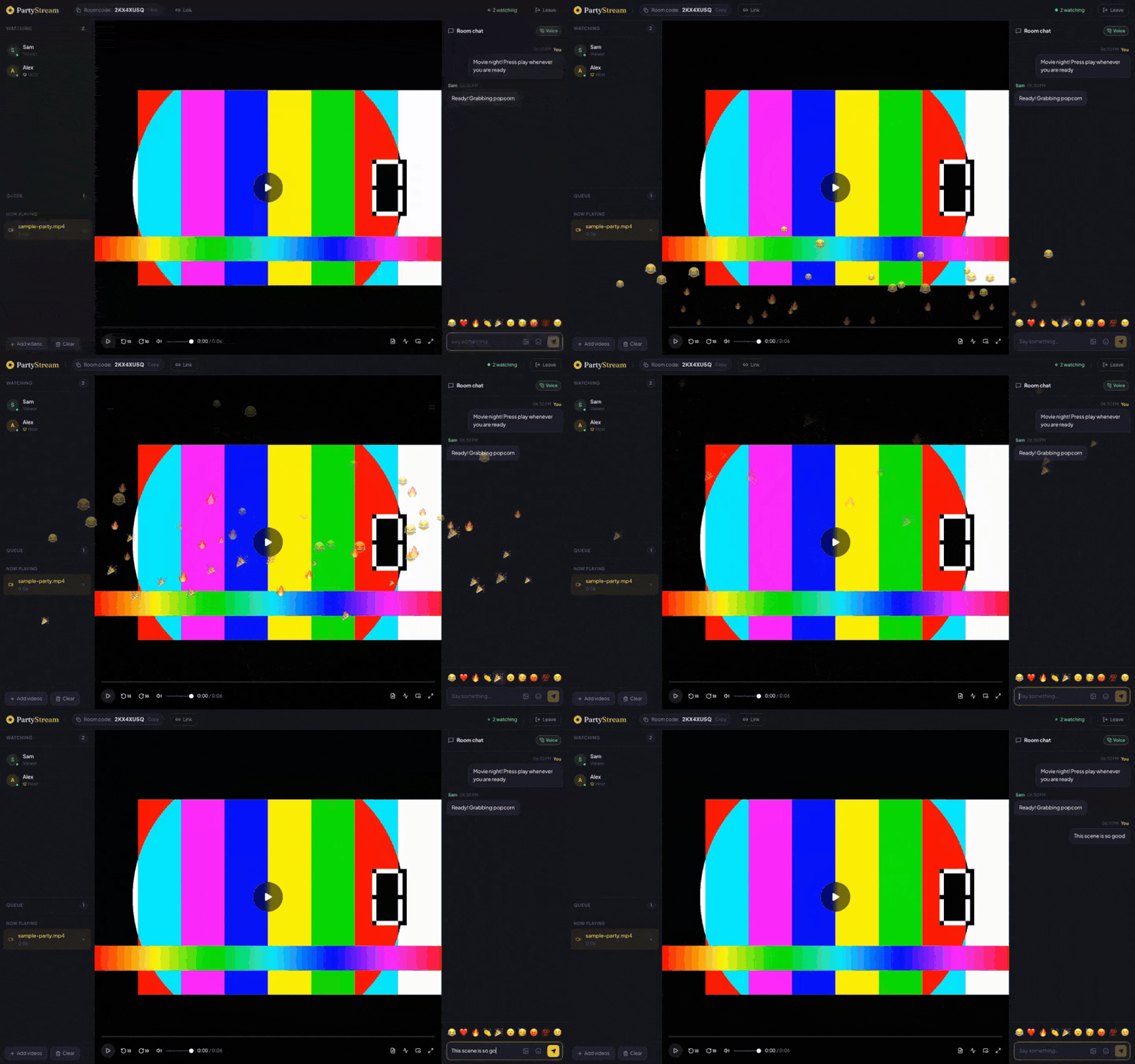
Emoji bursts are best for quick, wordless reactions. A burst of the crying-laughing emoji when a character does something stupid. A heart when the couple finally gets together. Fire when the hero wins. It is faster than typing and more visceral than a static message.
The emoji picker
The smiley button next to the chat input opens a full emoji picker with hundreds of emoji organized by category. This is for when the 10 burst emoji are not enough. You can insert any emoji into your text message, or react to a specific message by clicking the react button on it.
Reacting to a message attaches an emoji to it, so others can see your reaction in context. This is useful for responding to a specific point without typing a reply.
GIF search
The image button next to the chat input opens a GIF search powered by Giphy. Type a keyword, pick a GIF, and it appears in the chat for everyone. GIFs are a step up from emoji when words are not enough but a full sentence is too much. A well-timed GIF is often the perfect reaction to a scene.
Voice chat
If the host has voice chat enabled, there is a join-voice button in the chat header. One click turns on your mic, and everyone who joins can hear each other. Mute when you need to. No second app required.
Voice chat is best for longer discussions, commentary during slow scenes, or just hanging out. Text and emoji are better for quick reactions during fast scenes where talking would be disruptive.
When to use what
- Quick reaction to a scene: emoji burst. One click, no typing, everyone sees it.
- Replying to a specific message: emoji react on that message.
- Making a point or asking a question: text chat. Type it out.
- When words are not enough but a sentence is too much: GIF search.
- Longer discussion or commentary: voice chat. Join the voice channel and talk.
- During a tense scene where talking would ruin it: emoji bursts only. Save the discussion for after.
Ready to react together?
Create a room