You are in different cities, maybe different countries. You want to share a movie night, not a "I will watch it and text you about it later." PartyStream lets one person play a film and the other watch it live, in sync, with a chat sidebar for reactions. No account, no install, no "wait, pause it, I need to grab water."
Why a watch party beats texting
Texting about a movie after the fact is not the same as watching it together. The jokes land differently when you know someone is laughing at the same moment. The jump scares are better when you can react in real time. And the quiet parts feel less lonely when there is a chat panel where someone can type "this is the good part."
A synced watch party gives you that without the awkwardness of "are you at the part where he walks in?" or "wait, where are you?" Everyone is on the same frame. If someone needs a break, one person pauses and both screens stop. You resume together.
Pick something you both like
This sounds obvious, but it is the part that takes the longest. If you cannot decide, try a rotation: one week you pick, the next week they pick. Or pick a genre and narrow from there. Rom-coms, thrillers, animated films, and concert recordings all work well for a two-person watch party because they give you things to react to without requiring total silence.
The host needs the file on their computer. MP4 with H.264 and AAC is the format that works on every browser. If your file is in another format, convert it first. See our video formats guide for steps.
Set up the room
One of you creates a room on partystream.com. Type your name, click Create room, and you get an 8-character code. Send the code or the invite link to the other person through whatever you normally use to talk.
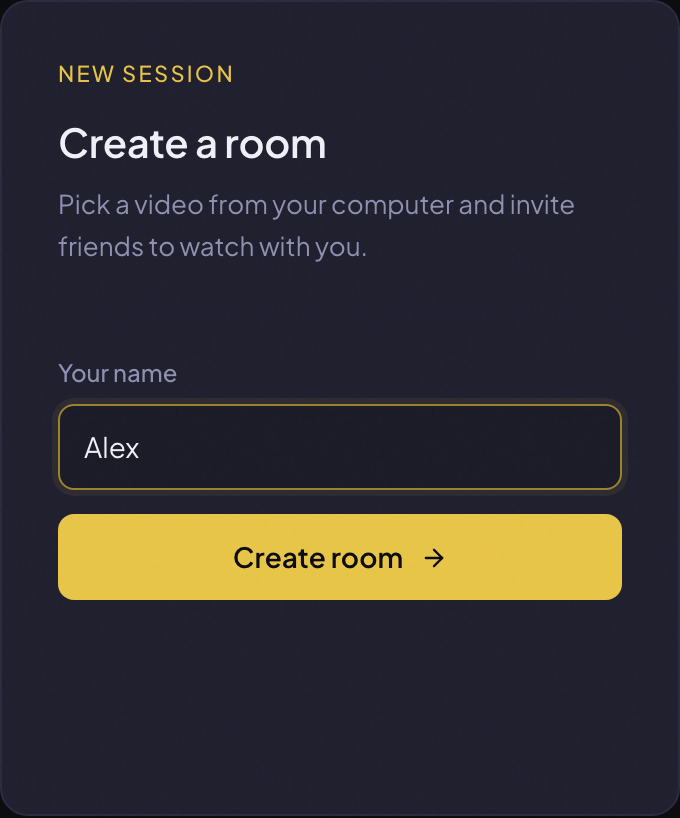
The other person clicks the link, types their name, and they are in. No app to download, no account to create. If they are on a phone, it works in the browser. The host needs a desktop browser (Chrome, Firefox, Safari, or Edge) because they are the one encoding and uploading the video.
During the movie
Once the host picks the file and presses play, both of you are watching the same thing. The chat sidebar is where the magic happens. Type a message and press Enter. React with an emoji burst that floats across both screens. If voice chat is enabled, join the voice channel and talk through the movie like you are on the couch together.
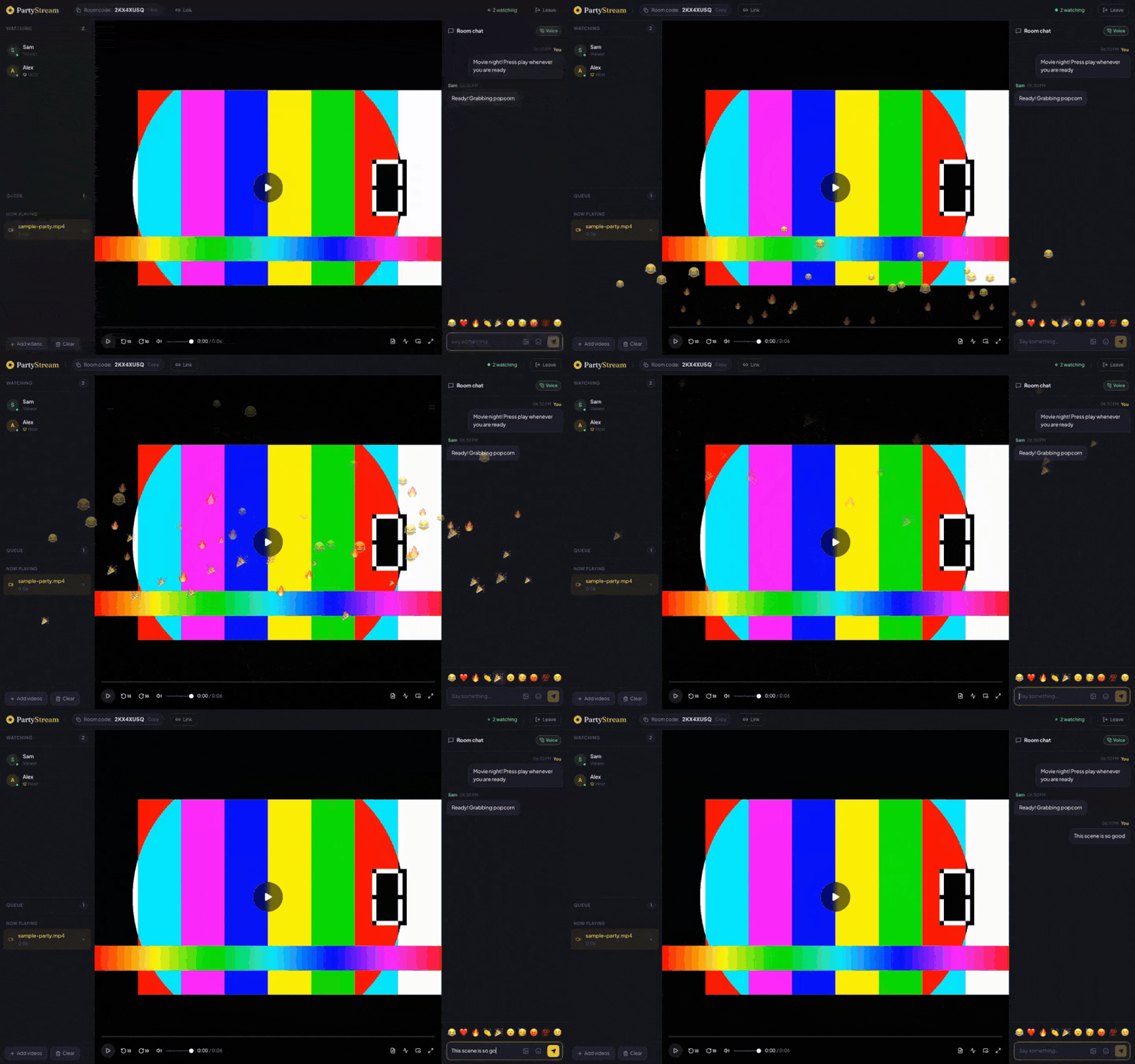
A few things that make it better:
- Use emoji bursts for jump scares. Clicking one of the reaction emoji in the bar above the chat input sends it floating across both screens. It is the closest thing to grabbing someone's arm during a scary scene.
- Pause for discussion. If a plot twist needs dissecting, the host pauses and both screens stop. Talk it through in chat or voice, then resume.
- Keep the host tab in the foreground. Browsers throttle background tabs, which can stall the video stream. If the host switches to another app, the other person might see a frozen frame.
- Send a GIF when words are not enough. The image button in the chat opens a Giphy search. Sometimes a GIF is the right reaction.
After the movie
When the film ends, you can talk about it in the chat, or switch to voice if you have not already. If you want to watch something else, the host can add another file to the queue and it auto-advances. The room stays open until the host leaves, so there is no rush.
If you want to make it a regular thing, rotate who picks the film and who hosts. The host is the one whose computer has the file and whose upload bandwidth does the work, so if one of you has a better connection, that person should host more often.
Ready for date night?
Create a room