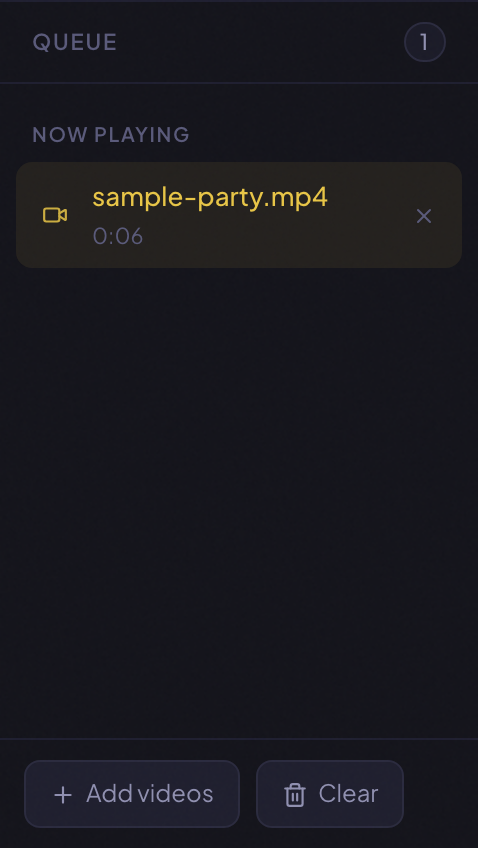
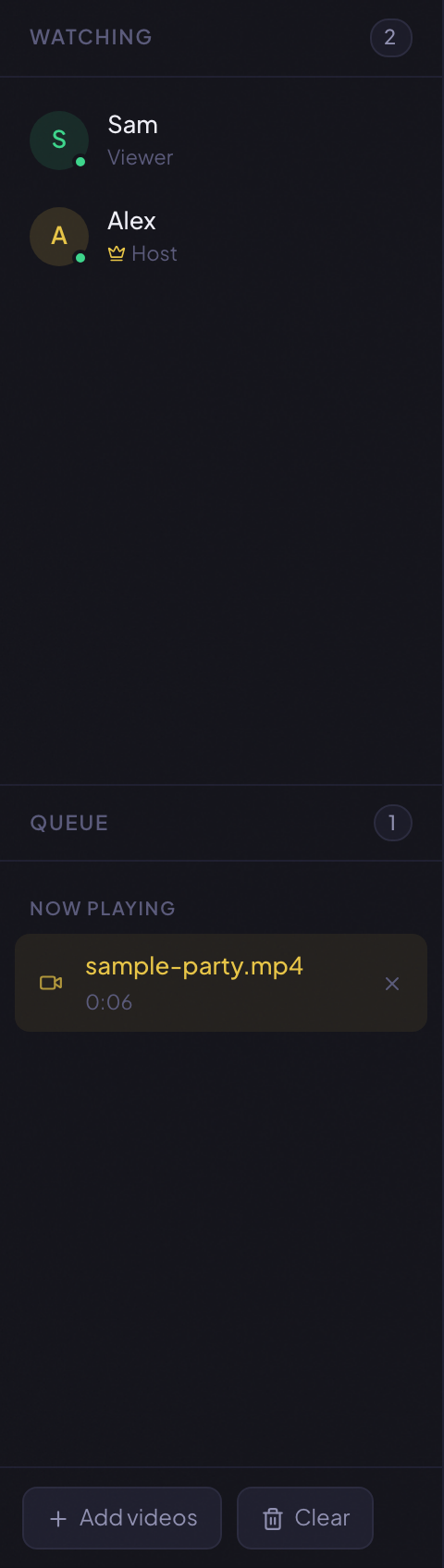
The queue is the bottom half of the left sidebar in a PartyStream room. It holds multiple videos in order, auto-advances to the next one when the current one finishes, and lets anyone replay an earlier item. The host can add, remove, and reorder. Guests can see the full queue and request items. Here is how to use it for a binge session.
Add files to the queue
The host can add files in two ways. Drag multiple files onto the drop zone in the center of the screen, or click Browse files and select several. You can also use the Add videos button at the bottom of the queue panel to add more files without going back to the drop zone.
When you add multiple files at once, they stack in the order you selected them. The first file becomes the current video and starts playing. The rest sit in the queue under an "Up next" label.
All files need to be in a browser-native format. MP4 with H.264 and AAC works on every browser. See our video formats guide if you need to convert files first.
Auto-advance
When the current video finishes, PartyStream automatically advances to the next item in the queue. You do not need to click anything. If the queue is empty (you have reached the end), the current video resets to the start and pauses. The host can then add more files or end the session.
Auto-advance works even if the host's tab is backgrounded. The host's sync-time broadcast keeps running while backgrounded, so PartyStream detects when the video has ended and advances to the next file. The video frames may be choppy while backgrounded, but the advance still fires.
Now playing, Up next, Played
The queue has three sections that update as you progress:
- Now playing: the current video, highlighted with a pulsing icon.
- Up next: videos after the current one, in order.
- Played: videos you have already watched. They stay visible so you can replay them.
The queue is never cleared on advance. Items just shift from "Up next" to "Now playing" to "Played" as the room moves through them. This means you can jump back to an earlier episode without re-adding it.
Reorder and remove
The host can drag items to reorder them. Click and hold the grip icon on the left of an item, then drag it up or down. To remove an item, click the X on the right. If the host removes the currently playing item, the video stops and returns to the drop zone. The rest of the queue is preserved.
The host can also clear the entire queue with the Clear button at the bottom. This does not stop the current video, it just empties the list of upcoming and played items.
Replay an item
Anyone in the room, including guests, can click any item in the queue to play it. For the host, this loads the file immediately. For a guest, clicking sends a request to the host to switch to that item. The host sees the request and the video switches.
This is useful for binge sessions where the group wants to rewatch a specific episode, or jump back to an earlier scene. The "Played" section keeps earlier items accessible without re-adding them.
Guests can request items
Guests see the full queue in read-only mode. They cannot add, remove, or reorder items. But they can click any item to request it. The request goes to the host, who decides whether to switch. This keeps playback control with the host while letting everyone participate in what to watch next.
Tips for binge sessions
- Add all episodes at once. Select all the files in the file picker. They queue in order and auto-advance, so you do not have to stop between episodes.
- Name your files clearly. The queue shows the file name. If your files are named "S01E01.mp4" through "S01E08.mp4" the queue is easy to follow. If they are named "video1.mp4" through "video8.mp4" it is confusing.
- Take breaks between episodes. The host can pause at any time. When the current episode ends, auto-advance fires after a brief delay. If you want a longer break, the host can wait before the next episode starts by pausing before it loads.
- Keep the host tab in the foreground. Browsers throttle background tabs, which can stall the video stream. If the host switches to another app, guests might see a frozen frame.
- Use voice chat for commentary. If voice chat is enabled, join the voice channel and talk between episodes instead of typing.
Ready to binge together?
Create a room