File sharing and screen sharing both get video onto your guests' screens, but they work differently and suit different situations. File sharing gives you sync, a seek bar, and a queue. Screen sharing gives you flexibility, live sources, and no file conversion worries. Understanding the tradeoffs saves you from a choppy movie night.
File sharing
The host picks a video file from their computer. PartyStream loads it, captures the video and audio tracks, and streams them to each guest over WebRTC. The host gets a seek bar, play/pause controls, and a queue for multiple files. Guests get their own volume and quality settings.
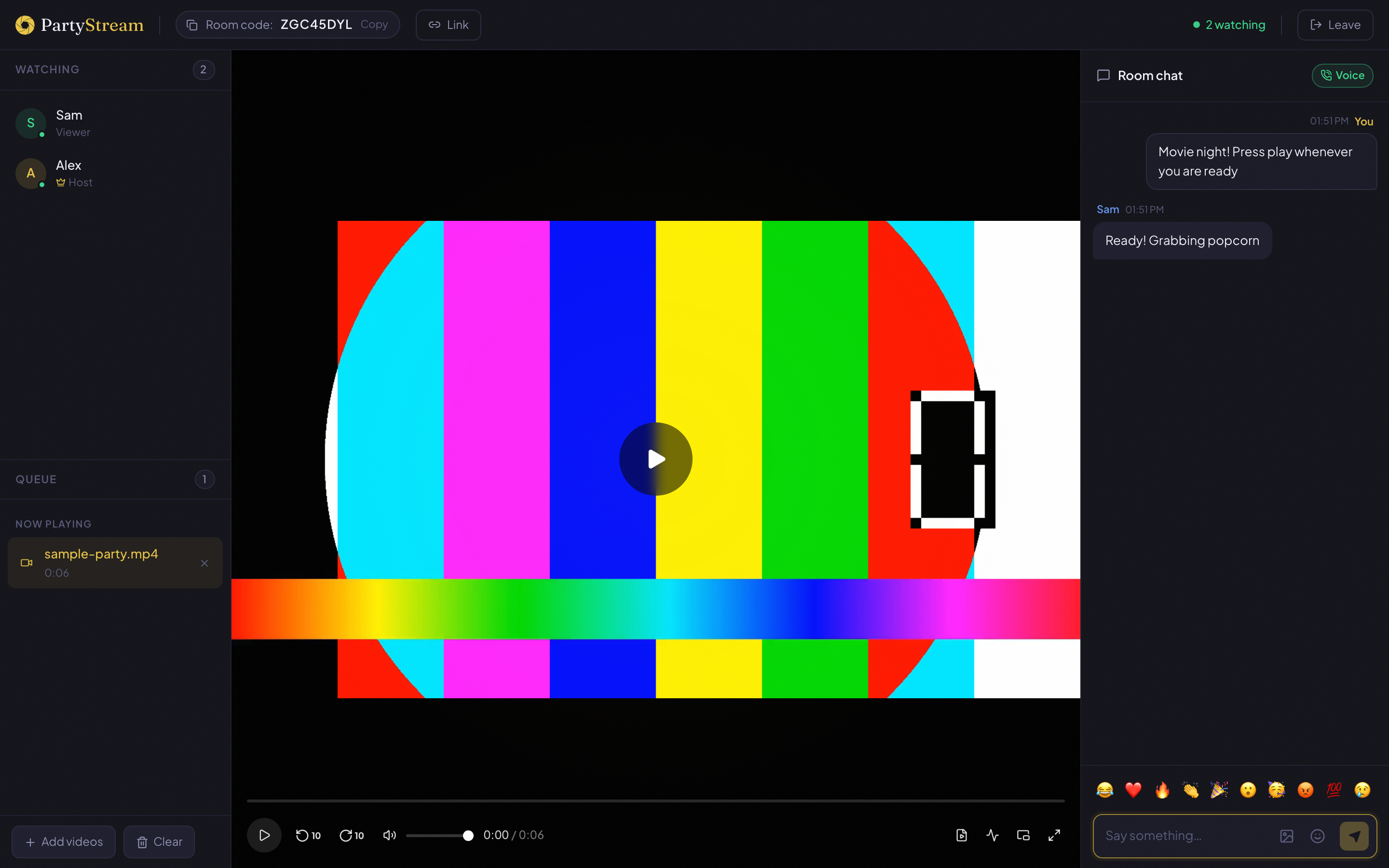
Pros:
- Full sync: play, pause, and seek are shared across all guests with sub-half-second precision.
- Seek bar: the host can jump to any point in the video. Everyone follows.
- Queue: add multiple files, auto-advance, replay any item.
- Per-guest quality: each guest picks Auto, High, Medium, or Low.
- Works on all browsers (Chrome, Firefox, Safari, Edge) as host or guest.
Cons:
- The host needs the file on their computer. No streaming-service URLs.
- The file must be in a browser-native format (MP4 with H.264 + AAC is the safe choice).
- DRM-protected content will not work.
Screen sharing
The host shares a browser tab or their entire screen. Guests see whatever the host sees, live. There is no seek bar, no queue, and no play/pause control in PartyStream. The host controls playback in the source app (YouTube, a streaming site, a video player).
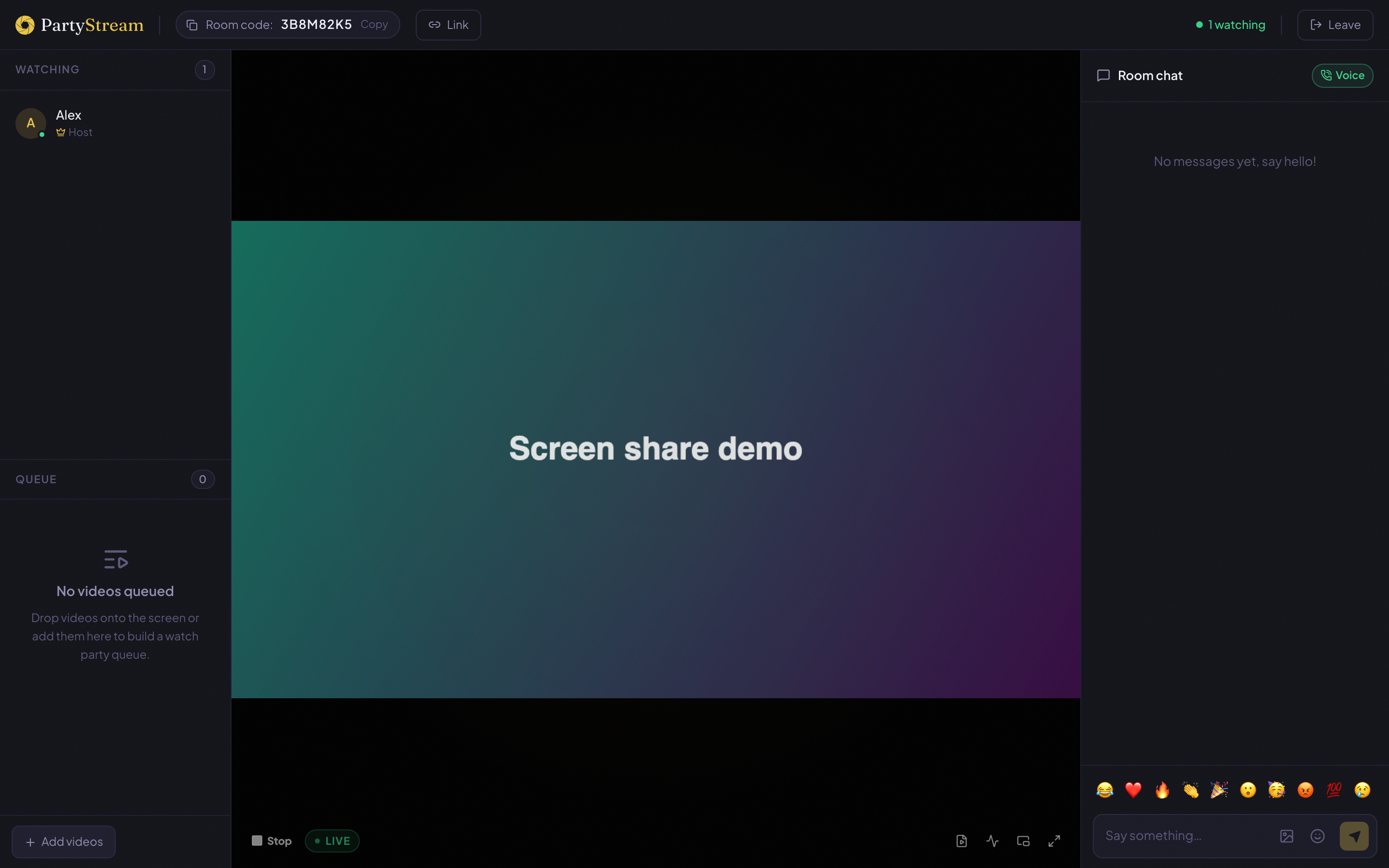
Pros:
- Works with anything the host can show on their screen: YouTube, web games, browser-based video players, presentations.
- No file conversion needed. If it plays in the host's browser, it streams.
- Live sources: sports, live streams, and real-time content that cannot be downloaded as a file.
Cons:
- No seek bar or queue. The host controls playback in the source app.
- No play/pause sync through PartyStream. If the host pauses in the source app, guests see a paused screen.
- The host's preview stays muted (the source app plays its own audio out loud). Guests get audio through a separate Web Audio path.
- Chrome and Edge only for the host (getDisplayMedia support). Firefox also works. Safari screen share support is limited.
Side-by-side comparison
- Sync: File sharing has full play/pause/seek sync. Screen sharing has no PartyStream-level sync (the host controls the source app).
- Seek bar: File sharing has one. Screen sharing does not.
- Queue: File sharing supports multiple files with auto-advance. Screen sharing does not use the queue.
- Source: File sharing needs a file on the host's computer. Screen sharing needs anything visible on the host's screen.
- Format requirements: File sharing needs a browser-native format. Screen sharing works with anything that plays in the host's browser.
- Live content: File sharing cannot do live streams. Screen sharing can.
- Host browser: File sharing works on Chrome, Firefox, Safari, Edge. Screen sharing works on Chrome, Edge, Firefox (Safari is limited).
When to use file sharing
- You have a movie or video file on your computer and want to watch it in sync with friends.
- You want a seek bar to jump around the video.
- You want to queue multiple videos for a binge session.
- You want per-guest quality settings so people on slow connections still get a watchable picture.
- You are watching with someone on Safari (file sharing works on all browsers).
When to use screen sharing
- You want to watch something on YouTube together (the host shares the tab).
- You are watching a live stream or live sports.
- Your file is in a format that does not work with file sharing and you do not want to convert it.
- You want to share a web game, a presentation, or anything that is not a video file.
- You are showing a clip quickly and do not need a seek bar or queue.
For most movie nights, file sharing is the better choice because of the sync, seek bar, and queue. Screen sharing is the right pick when the content is live, on a website, or not available as a file.
Ready to try both?
Create a room