PartyStream runs in a browser, not a native app. That means it works on any device with a modern browser, including phones and tablets. But the host and guest roles have different requirements, and only one of them works well on mobile.
The short answer
- Guests: yes, any modern mobile browser. Open the invite link, type your name, and join.
- Hosts: no, you need a desktop browser (Chrome, Firefox, Safari, or Edge). The host encodes and uploads video in real time, which a phone is not powerful enough for.
Guests on mobile
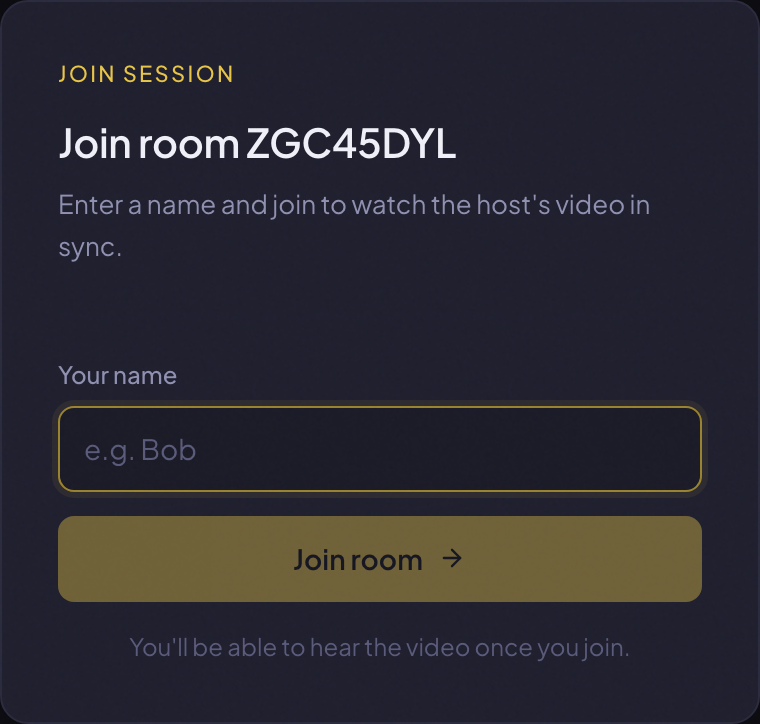
If someone sent you a PartyStream invite link, you can join from your phone or tablet. Open the link in your browser, type a display name, and you are in. No app to download, no account to create.
Once you are in, you see the host's video stream, the chat sidebar, and the participant list. You can send text messages, react with emoji, send GIFs, and pick your own quality setting. If the host has voice chat enabled, you can join the voice channel from your phone too.
Why the host needs desktop
The host's browser does two things that require real processing power: it decodes the video file and captures its tracks, and it encodes and uploads a separate stream to each guest in real time. This is CPU-intensive work. A phone processor cannot handle it without overheating and dropping frames.
On top of that, the host needs to pick a file from their computer (or share their screen), and mobile browsers have limited file system access and no screen share support. So the host role is desktop-only by design, not just by preference.
What the mobile UI looks like
On a phone or tablet, the sidebars (participants, queue, chat) do not fit alongside the video. PartyStream adapts: the sidebars become overlays that you toggle with buttons in the top bar. The video takes the full screen, and you tap to show or hide the chat and participant list on top of it.
- Video controls: always visible on touch devices (no hover to reveal). The volume slider is hidden on mobile to save space.
- Chat: tap the chat button in the top bar to open the chat as an overlay. Tap again to close it and see the full video.
- Participants and queue: tap the participants button in the top bar to open the left sidebar as an overlay.
- Quality selector: available in the video controls. Pick Auto, High, Medium, or Low to match your connection.
Quality on mobile
If you are on a cellular connection (4G, 5G), pick Auto or Low quality. Auto watches your inbound bitrate and packet loss and drops to a tier your connection can sustain. Low gives you a smaller picture that uses less data. If you are on Wi-Fi, High or Auto should be fine.
If the video is choppy or keeps buffering, switch to a lower quality. If it is still choppy, the host's upload bandwidth might be the bottleneck, which you cannot fix from your end. See our troubleshooting tips in the full how-to guide.
Which mobile browsers work
- Safari (iOS): works for guests. The standard iPhone and iPad browser.
- Chrome (Android): works for guests. The most common Android browser.
- Firefox (Android): works for guests.
- Samsung Internet (Android): works for guests (Chromium-based).
- Edge (Android): works for guests (Chromium-based).
On iOS, all browsers use WebKit under the hood, so the experience is similar across Safari, Chrome on iOS, and Firefox on iOS. Safari is the most reliable choice on iPhone and iPad.
Want to join from your phone?
Get an invite link